In this Article

The SmartThings app turns a phone into a remote for a connected Samsung TV, with Quick remote available from the phone's notification…

1. SmartThings TV Remote Features at a Glance

2. How Do You Connect a Samsung TV to the SmartThings App?

3. How Do You Use Your Phone as a Samsung TV Remote?

4. Can You Access the Remote Without Opening the App Fully?

5. Can You Share TV Control With Family or Guests?

6. Why Share Access Instead of Just Handing Over the Phone?

Share this Blog Post

SmartThings - Quick Remote Dynamic Island

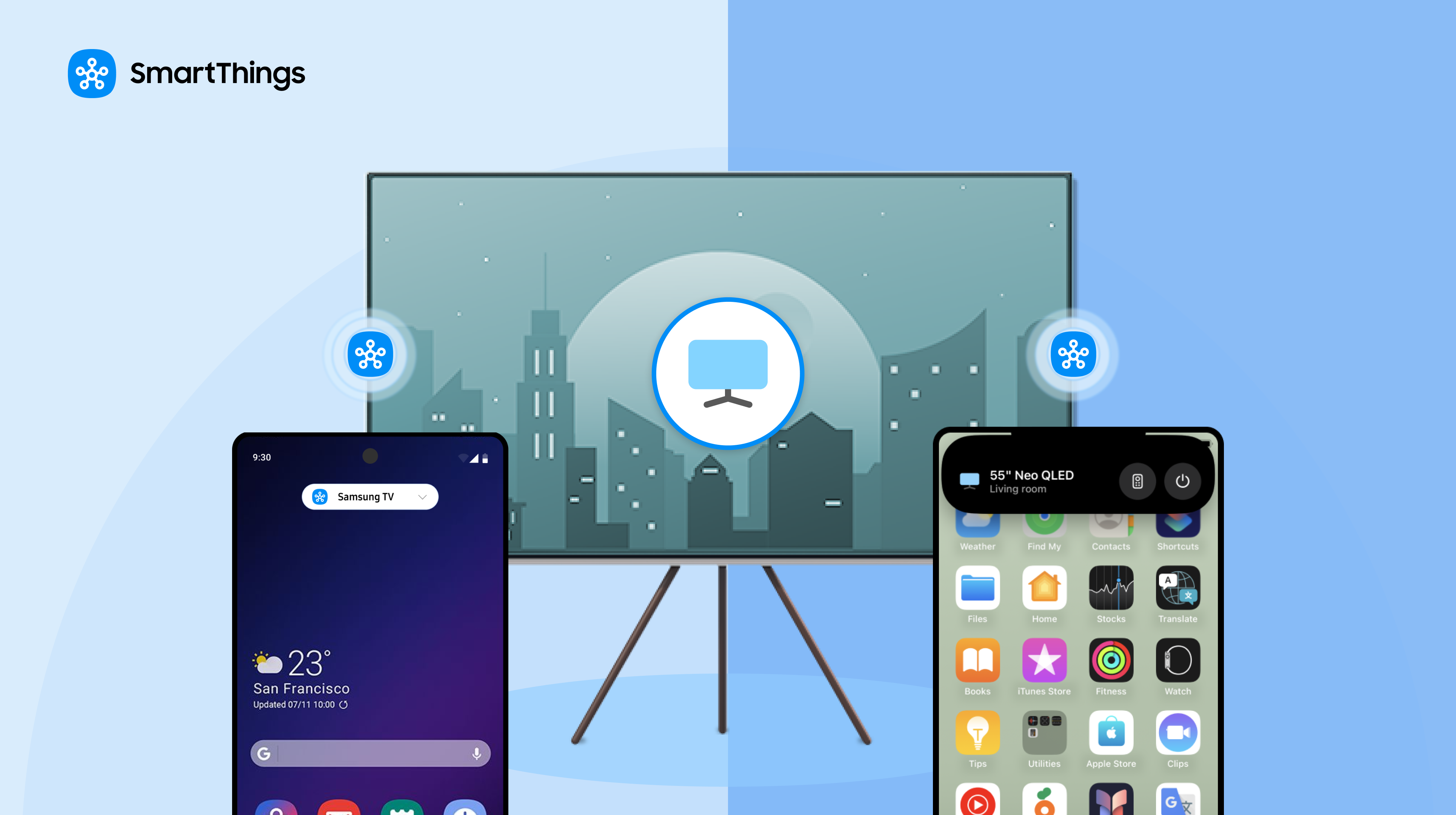
The SmartThings app turns a phone into a remote for a connected Samsung TV, with Quick remote available from the phone’s notification screen or Dynamic Island. Invite member lets a user share control of specific devices with family or guests through a QR code, without handing over the phone itself.

A lost remote is a small, recurring annoyance rather than a real problem, which is exactly the kind of thing SmartThings is built to remove: instead of a new device to misplace, the remote lives inside an app already on the phone. 

SmartThings TV Remote Features at a Glance

FeatureWhat it doesAvailable on
Phone as remoteControls a connected Samsung TV from the SmartThings appiOS and Android
Quick remoteOpens the remote from the notification screen or Dynamic IslandGalaxy (notification screen), iOS (Notification Center or Dynamic Island)
Invite memberShares control of specific devices via a QR codeiOS and Android

How Do You Connect a Samsung TV to the SmartThings App?

Download the SmartThings app, then connect the TV with these steps:

1.               Open the SmartThings app and tap the “+” button in the top right corner.
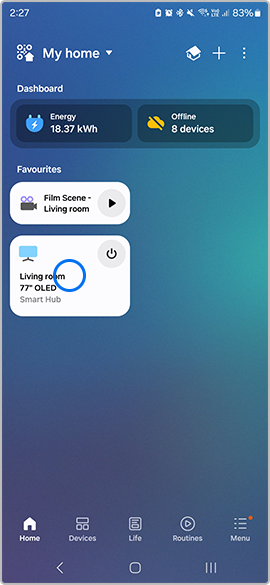
SmartThings Home Screen

2.               Select Add device under Samsung devices, then tap TV.
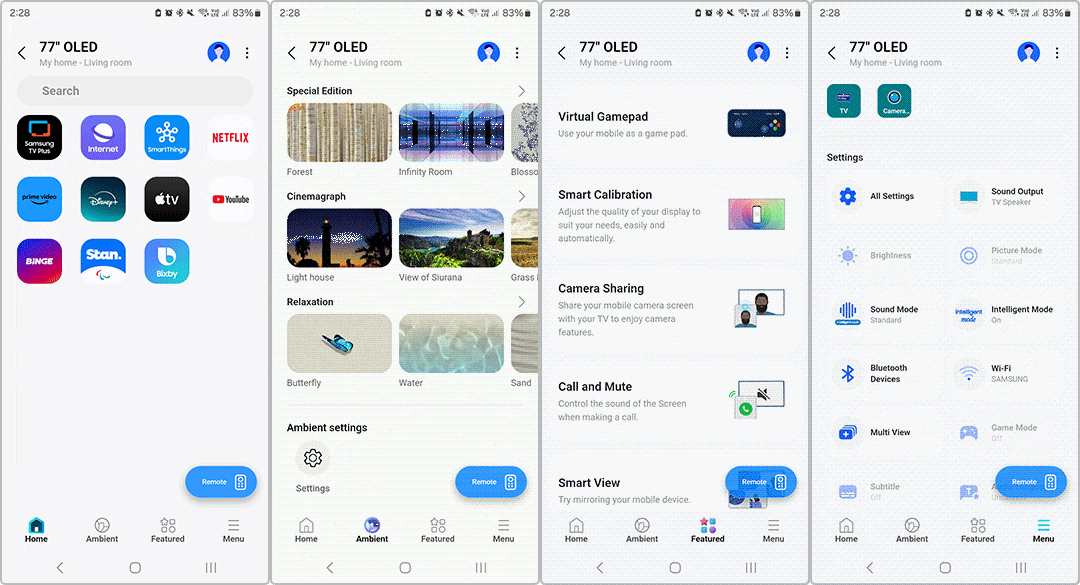
Using SmartThings as a Remote

3.               Make sure the Samsung TV is on and near the phone or tablet.

4.               Select the TV and enter the PIN displayed on screen.

Once connected, the TV can be controlled from the app.
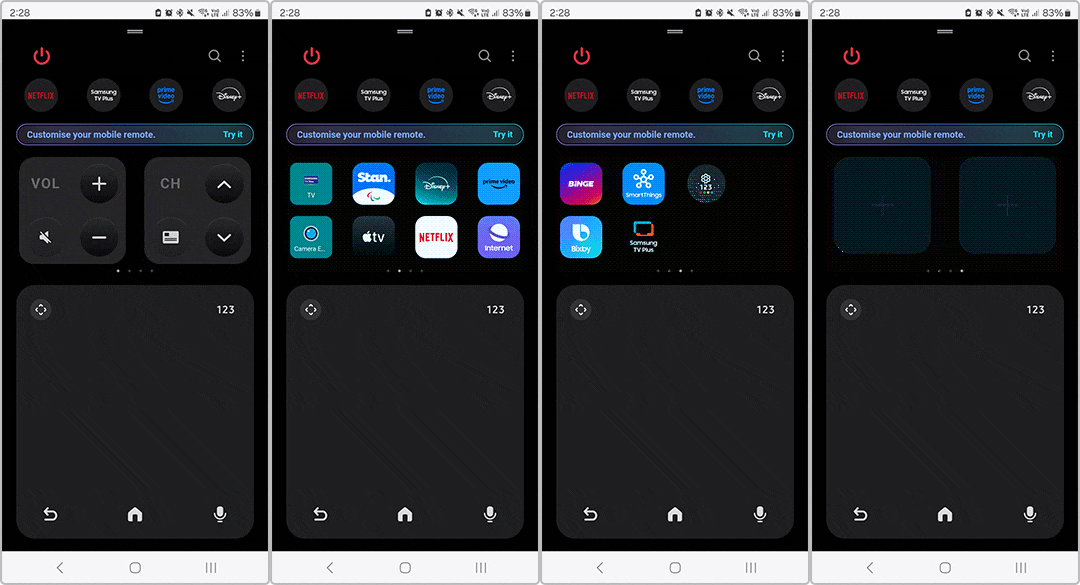
Using SmartThings as a Remote

How Do You Use Your Phone as a Samsung TV Remote?

Open the SmartThings app and tap the TV tile, with the TV turned on. In the bottom panel, tap Remote to open the on-screen remote. Swiping left or right in the middle panel navigates between different remote buttons; for volume specifically, the phone’s own volume up/down buttons work instead of an on-screen control.

The same app can extend that same phone-as-remote idea to other connected devices, including Samsung washers and dryers, so a household isn’t learning a separate control method for every appliance.
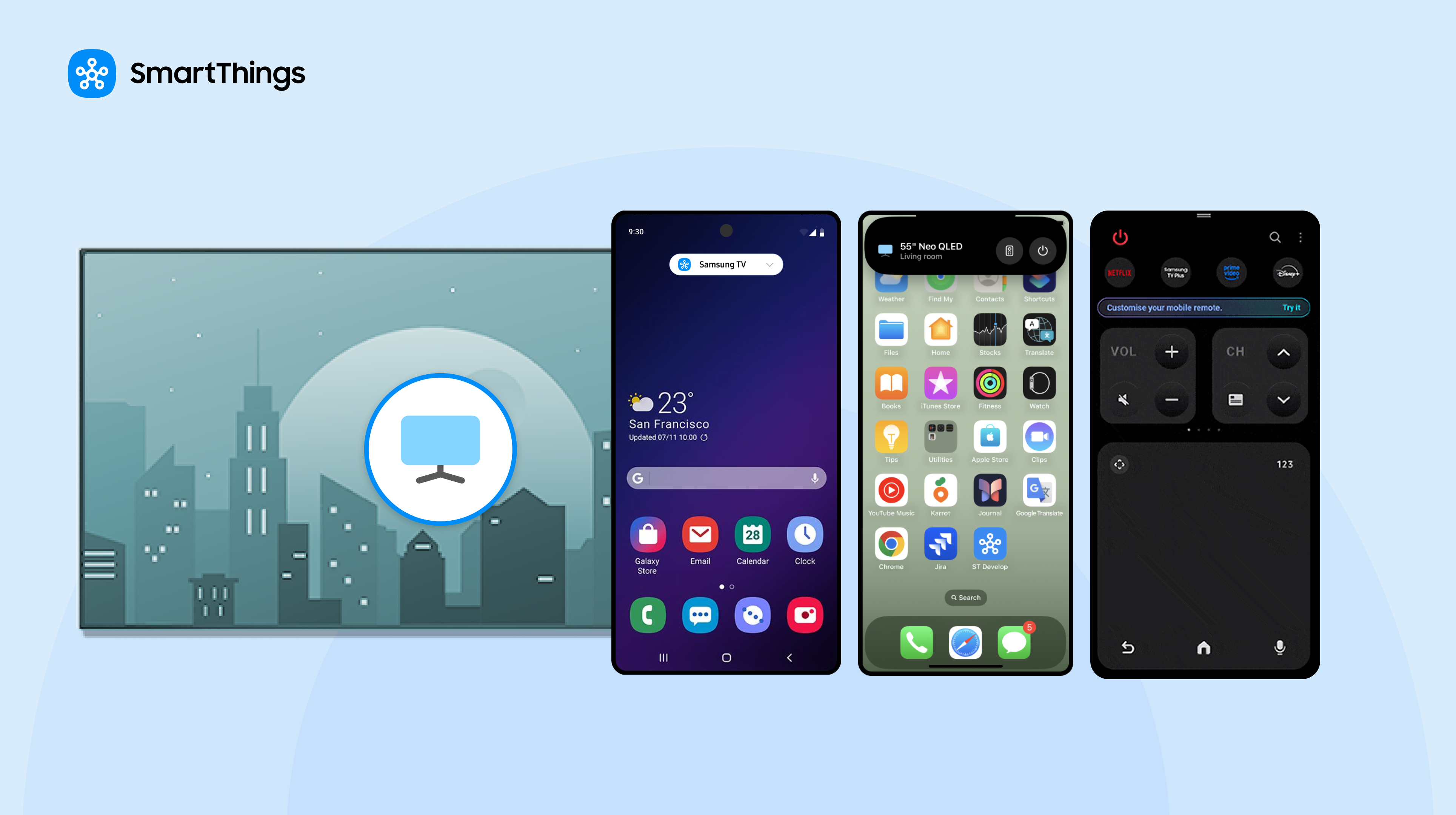
SmartThings Quick Remote

Can You Access the Remote Without Opening the App Fully?

Yes. The remote can be reached directly from the notification screen on a Galaxy device, or from the Notification Center or Dynamic Island on iOS devices, without navigating into the full SmartThings app first.

Can You Share TV Control With Family or Guests?

Yes, through a feature called Invite member. Rather than handing over the phone itself, a user can generate a QR code that gives someone else access to specific devices in the home, and that person can even set up their own routines once connected. To share access:
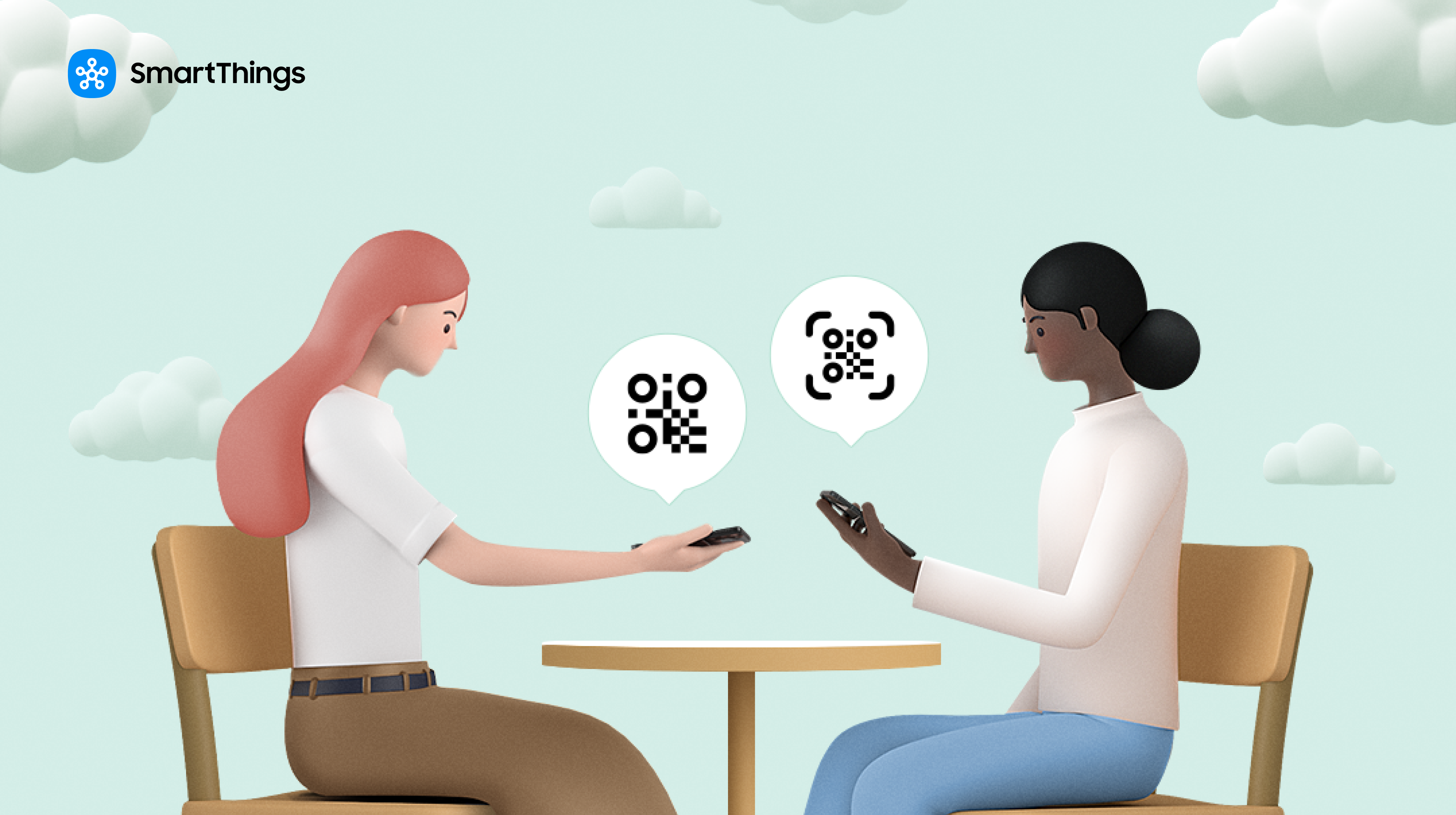
Sharing QR Code with SmartThings
  1. Open the SmartThings app and tap the location drop-down menu to select the relevant location.
  2. Tap the QR code sharing button in the top left corner.
  3. Optionally, tap “Access level” to choose full access or specific devices, and set how long that access lasts.
  4. The invitee scans the QR code with their own phone to join.

Why Share Access Instead of Just Handing Over the Phone?

Sharing device access allows a guest to use their own phone rather than borrow yours. This can be useful when a visitor needs TV controls while you keep your phone available for calls, messages or other tasks. SmartThings TV Remote: Compatibility and Limitations

Platform support. The SmartThings app and its TV remote features are available on both iOS and Android.

Setup proximity. Initial pairing requires the Samsung TV to be on and physically near the phone or tablet being used to connect it.

QR code expiration. Each Invite member QR code is available to only one person at a time and expires after five minutes, as a security measure. A new code needs to be generated for each person being granted access, or after a code expires unused.

Quick remote location. Where the Quick remote appears differs by platform: the notification screen on Galaxy devices, versus the Notification Center or Dynamic Island on iOS. Samsung’s material doesn’t describe an equivalent Quick remote shortcut for non-Galaxy Android devices specifically.

Subscribe for more articles like this!

Your email address
[contact-form-7 id="831e457" title="Contact form"] You may opt-out at any time. Privacy Policy.

Learn more about becoming a SmartThings partner.
Work With Us

Inspire the world and create the future of IoT at SmartThings.

You Might Also Like...

SmartThings Updates

August 14, 2014

SmartThings, Samsung, and the Open Platform

Friends, Today is a big day for SmartThings. I’m excited to announce that SmartThings has been acquired by Samsung and will operate as an independent company within Samsung’s Open Innovation Center group. It has always been our goal to create a totally open smart home platform that brings together third-party developers, device makers, and consumers. We’re thrilled that Samsung fully supports this vision. We will continue to run SmartThings the way we always have: by embracing our community of customers, developers, and device makers and championing the creation of the leading open platform for the smart home. Our growing team will remain fully intact and will relocate to a new headquarters in Palo Alto, CA. In short: SmartThings will remain SmartThings. (more…)
Read More
SmartThings Updates

March 31, 2015

Update: SmartThings Hub & Hardware V2

Earlier this year we announced that we’ll soon unveil the next generation of the SmartThings Hub and several sensors. We wanted to provide a quick update on our progress to date. (more…)
Read More
SmartThings Updates

September 3, 2015

The Next Generation of SmartThings is Here

We’re excited to announce that the next generation of the Samsung SmartThings Hub, a new lineup of products, and a brand-new SmartThings app experience is available today. Our mission has always been to create the easiest way for people to turn their home into a smart home. In fact, we started SmartThings out of a desire to know the answer to a basic but deeply personal question: is everything OK in my home.  We believe our latest product evolution delivers on this ambition. Here's a look at what's new and improved: The New Samsung SmartThings Hub and Sensors The new Hub enables video streaming, has battery backup that lasts up to 10 hours, and can run certain functions locally to improve performance and continue to operate without an internet connection. The Hub will continue to support ZigBee, Z-Wave, and local internet connected devices. Two USB ports and embedded Bluetooth will support future expansion. The new collection of Samsung SmartThings sensors are now smaller and have been redesigned with a sleeker, more contemporary look to fit seamlessly into the background of your home. The New SmartThings App Experience The free SmartThings app has been redesigned for easier navigation and a more intuitive experience.  You can now directly organize and control your connected devices by room, view live streaming from cameras, quickly set up and run routines, explore the marketplace of nearly 200 devices now compatible with SmartThings, and so much more. One of the exciting new features of the SmartThings app experience is Smart Home Monitor– an integrated home monitoring solution. Smart Home Monitor allows you to receive alerts and take action when SmartThings detects unwanted entry or motion, smoke or fire, leaks, or other important activity. Existing customers will be able to configure Smart Home Monitor from their dashboard within 24 hours after downloading the updated app. With Smart Home Monitor, our Hub version 2, and a connected camera, you can also get instant alerts with an accompanying video-clip when these unexpected events occur.  Video buffering in the new hub means clips can start prior to the event so you can see exactly what is happening in your home. Video clips will eventually be a premium feature within Smart Home Monitor but are available in beta as a free trial through 2015. After the free trial, a premium version of Smart Home Monitor, which includes video clips, will be available for $4.99 per month. Live streaming will always be free. The new SmartThings app will be available for free download on iOS and Android starting today, with Apple Watch, and Gear S apps to follow. Be sure to check out our post for a more in-depth look at the app’s new features. We would like to extend our heart-felt thanks to our customers, supporters, and developer community. Your commitment, feedback, and ideas are what make our open platform truly special. We hope you you enjoy the new SmartThings experience.    
Read More

Our Most Popular Categories