Did you know your Samsung TV can double as a SmartThings Hub? Many 2024 and newer models come with the hub built in, which means no extra device is needed. With just a few steps, you can turn your TV into the heart of your smart home and instantly start connecting devices. Read on for a step-by-step guide to activate your SmartThings Hub.
How it Works
There are two easy ways to activate the SmartThings Hub built into your TV: directly from your mobile phone using the SmartThings app, or through the SmartThings app on your TV.
Both options follow a similar flow, connect your TV, enable the hub, and start adding devices, so you can choose whichever is most convenient for you.
Activate the Hub Using Your Galaxy
If you already use SmartThings on your phone, this is often the fastest way to get started.
Step 1: Turn On Your TV
Make sure your Samsung TV is powered on and connected to Wi-Fi.
Step 2: Open SmartThings on Your Phone
Launch the SmartThings app on your mobile device.
Confirm you’re signed in with the same Samsung account used on your TV.
Step 3: Find Your TV
Tap Devices in the app.
Select your TV from the list.
Step 4: Open Hub Settings
Tap the Featured icon at the bottom
SmartThings Hub shows up on the next screen
Step 5: Activate the Hub
Follow the on-screen prompts to turn the hub On.
Wait while SmartThings connects to your TV and completes setup.
Once finished, your TV is officially activated as a SmartThings Hub.
Activate the Hub Using Your TV
You can also turn on the hub directly from your TV using the built-in SmartThings app.
Step 1: Turn on Your TV
Make sure your Samsung TV is powered on and connected to Wi-Fi.
Step 2: Open the SmartThings App on Your TV
Press the Home button on your remote.
Scroll over to Connected Devices
Navigate to and open the SmartThings app.
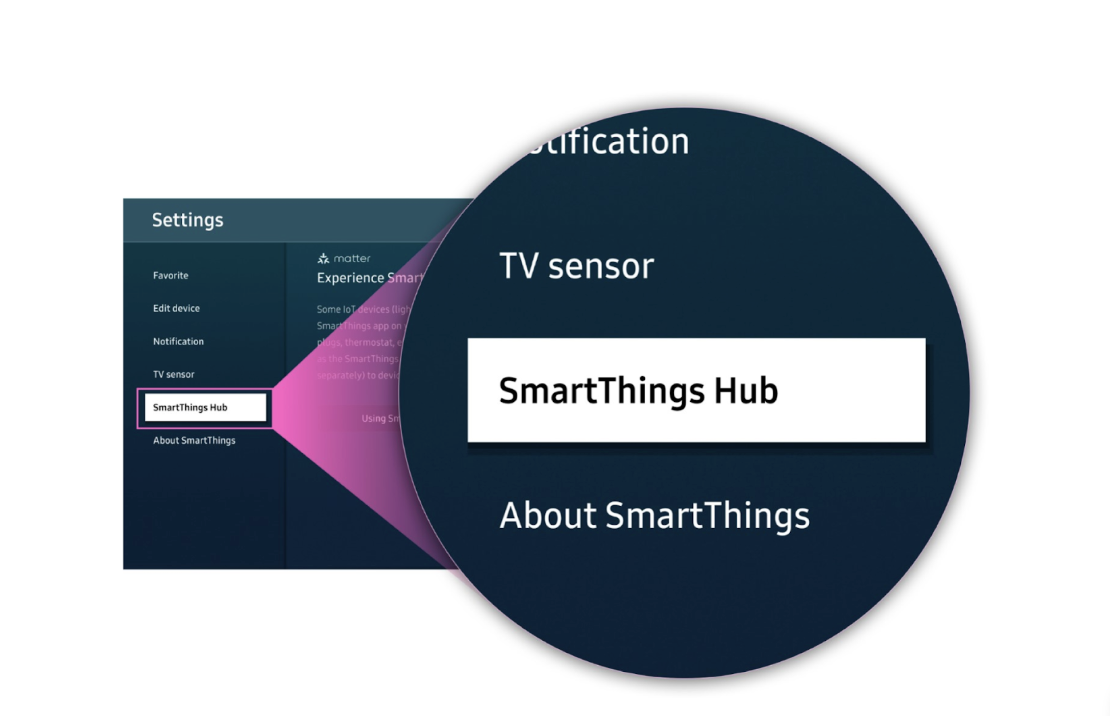
Step 3: Access Settings
Select the Settings icon (cog wheel) in the SmartThings app. This may also be featured already on the home page.
Scroll down and choose SmartThings Hub.
Step 4: Activate the Hub
Toggle SmartThings Hub to On.
The Hub is now active!
Step 5: Add Devices
Once your Hub is activated:
In the SmartThings app, tap + Add device.
Scan for Matter or other supported devices.
Import them into SmartThings.
That’s It!
Your Samsung TV is now a fully functioning SmartThings Hub. From here, you can control smart lights, plugs, sensors, and more, all without additional hardware.
With the Hub activated, your TV becomes more than just a screen; it’s now the command center for your connected home. Whether you’re dimming lights for movie night, automating your thermostat when you leave home, or linking new Matter devices as they hit the market, SmartThings makes it seamless.
Need devices to start building out your smart home? Shop them now at https://www.samsung.com/us/smartthings/all-smartthings/
Buckle up as Jonathan Strickland, the founder of How Stuff Works, takes you on a tour of the house of the future and into a reality where you not only interact with the world around you, but where it also reacts to you.
Convinced that their house was either haunted or that their four-legged feline friends were snooping through their kitchen drawers and cabinets, two SmartThings owners hooked up an ingenious way to deter the culprits. (more…)
Everyone has a story to tell. We want to hear yours. To have your story about SmartThings featured, please check out our submission guidelines below and then pass it on over to us by e-mailing eliot@smartthings.com. (more…)
IFTTT is a service that lets you create powerful connections with one simple statement: if this then that. With the new SmartThings Channel on IFTTT you can create and share connections that seamlessly integrate your favorite online services with the everyday things in your physical world.
(more…)